
Deep Learning Optimization with Microsoft DeepSpeed#
DeepSpeed is an open-source deep learning optimization library developed by Microsoft that improves the efficiency of training and deploying large-scale models. It uses techniques like the Zero Redundancy Optimizer (ZeRO), model parallelism, and memory optimization to significantly reduce computational resources and memory usage, enabling the use of massive models that might otherwise be impossible to train.
Introduction#
This guide focuses on DeepSpeed for deep learning optimization for large language models.
Training such large models is computationally expensive and quickly runs into memory limits — especially on a single GPU.
DeepSpeed is a deep learning optimization library from Microsoft designed to:
Reduce GPU memory usage via ZeRO optimizations (stage 1–3).
Enable distributed training across GPUs and even nodes.
Support model and tensor parallelism.
Work seamlessly with Hugging Face Transformers.
Objective#
In this guide, You will experiment:
Note
This guide focuses on running the experiments step by step. For deeper insights into the scripts, internal configurations, and implementation details, please see the accompanying repository Dist-DL-training/DeepSpeed
Initial Setup#
This repository Dist-DL-training/DeepSpeed is organized into modular directories for code, configuration, and experiments.
Starting with cloning the repo:
git clone https://github.com/kaust-rccl/Dist-DL-training.git
cd Dist-DL-training/deepspeed
Repository Structure
.
├── scripts/                      # Core Python modules used across all training jobs
│   ├── train.py                  # Launches training with HF Trainer and DeepSpeed
│   ├── data_loader.py            # Loads and tokenizes dataset (e.g., SQuAD)
│   ├── model.py                  # Loads model and tokenizer (e.g., BLOOM)
│   └── config.py                 # Central config for training args and CLI parsing
│   └── analyze_memory.py         # Parses GPU/CPU memory logs and summarizes peak/avg/mode usage
│
├── ds_configs/                   # DeepSpeed configuration JSON files
│   ├── zero0.json
│   ├── zero1.json
│   ├── zero2_cpu_offload.json
│   ├── zero2_cpu_offload_pinned_memory.json
│   └── ...
│
├── experiments/                  # SLURM job scripts organized by context
│   ├── deepspeed-single-gpu/
│   │   ├── zero_0/
│   │   ├── zero_1/
│   │   ├── zero_2/
│   │   └── ...
│   └── deepspeed-multi-node/
│       ├── 2_nodes/
│       ├── 3_nodes/
│       ├── 4_nodes/
│       └── ...
│
├── log/                          # SLURM job logs (output generated at runtime)
├── gpu_memory/                   # GPU memory logs (generated at runtime)
├── cpu_memory/                   # CPU memory logs (generated at runtime)
│
└── README.md                     # Workshop guide and documentation
Environment Setup#
To run the experiments, you’ll need a properly configured Conda environment.
If you haven’t installed conda yet, please follow using conda on Ibex guide to get started.
Build the conda environment required using the recommended yml file in the project directory, using command:
conda env create -f environment.yml
conda activate deepspeed-finetune
Note
The Conda environment should be built on an allocated GPU node. Please ensure you allocate a GPU node before starting the build.
Baseline: BLOOM Fine-tuning without DeepSpeed#
Before exploring DeepSpeed optimizations, it’s useful to understand the vanilla HuggingFace fine-tuning process using a smaller LLM like bigscience/bloom-560m, and 500 examples subset of SQuAD for question-answer format training.
Note
For more details about the model loader and saver, dataset preprocessing, training configuration, training, and SLURM Job Submission scripts, follow the guide in the fine-tuning setup on the repository.
Running the Experiment#
Once all components are in place — model loading, dataset preprocessing, training configuration, and training logic — you can execute the full fine-tuning workflow with minimal manual steps.
Use the baseline.slurm script to submit the training job on a GPU node:
cd experiments/baseline

sbatch baseline.slurm
Output#
Output logs found in .out inside log directory, it should be tailed with the slurm job id.
cd log
cat <job_name>_<job_id>.out
The following artifacts will be generated:
Artifact Type |
Location |
Description |
|---|---|---|
Fine-Tuned Model |
./bloom-qa-finetuned/ |
Contains model weights, config, and tokenizer files |
SLURM Log |
log/-.out |
Console output including training progress and evaluation logs |
GPU Memory Log |
gpu_memory/gpu_memory_log_.csv |
Periodic memory usage from nvidia-smi |
CPU Memory Log |
cpu_memory/cpu_memory_log_.txt |
RAM usage sampled over time using psrecord |
You will see output similar to:
100%|██████████| 93/93 [02:02<00:00,  1.10s/it]
{'eval_loss': 1.2965, 'eval_runtime': 1.267, 'eval_samples_per_second': 39.46, ...}
{'train_runtime': 133.21, 'train_samples_per_second': 11.26, 'train_loss': 0.7039, ...}
✅ Model and tokenizer saved to ./bloom-finetuned

GPU Memory Usage
[gpu_memory_log - GPU 0] Peak = 21658 MiB, Avg = 18683.53 MiB, Mode = 21658 MiB

CPU Memory Usage
   Peak =    3892 MB
   Average = 2276.06 MB
   Mode =    2145, 2177 MB
Tip
Follow this baseline exercise as part of this workshop, your task is to run the baseline fine-tuning experiment and recreate the performance summary table using your own training logs .
DeepSpeed-Zero on Single Node Single GPU#
DeepSpeed Configuration File#
The DeepSpeed config file is the central interface through which you control how DeepSpeed integrates with your training pipeline. It acts like a blueprint that tells DeepSpeed how to optimize and manage.
A basic example of ds_config.json is available Kaust-rccl/Dist-DL-training/deepspeed/DeepSpeed configs - Zero for reference.
{
  "train_batch_size": "auto",
  "gradient_accumulation_steps": "auto",
  "gradient_clipping": 1.0,
  "optimizer": {
    "type": "AdamW",
    "params": {
      "lr": 5e-5,
      "betas": [0.9, 0.999],
      "eps": 1e-8,
      "weight_decay": 0.01
    }
  },
  "fp16": {
    "enabled": true
  },
  "zero_optimization": {
    "stage": 0
  }
}
Below are the key settings used throughout this workshop. These form the foundation for later ZeRO configurations:
Key |
Value |
Description |
|---|---|---|
|
|
Automatically sets the largest batch size that fits into GPU memory. |
|
|
Automatically determines the number of accumulation steps to simulate larger batch sizes. |
|
|
Caps gradient norms to prevent exploding gradients and ensure training stability. |
|
|
Optimizer used for training; AdamW is standard for transformer models. |
|
|
Learning rate used for fine-tuning. |
|
|
Beta values used by Adam optimizer for momentum calculations. |
|
|
Small constant added to prevent division by zero during optimization. |
|
|
Regularization parameter to prevent overfitting. |
|
|
Enables Automatic Mixed Precision (AMP) for faster and more memory-efficient training. |
|
|
No ZeRO optimization yet — used for compatibility with DeepSpeed’s integration in Hugging Face. |
Note
For additional details about more parameters in DeepSpeed
configuration, Please check official documentation for DeepSpeed
configuration JSON. .
Note: zero_optimization.stage = 0 does not activate ZeRO but
satisfies DeepSpeed’s required structure.
More on ZeRO optimization (Stage 1, 2, and 3) will be covered in a later section.
Turning the Baseline into a DeepSpeed-Enabled Trainer#
In the baseline setup, the Trainer uses Hugging Face’s standard
training loop without any DeepSpeed optimizations.
To integrate DeepSpeed into the training pipeline, the
TrainingArguments class must reference a DeepSpeed configuration
file <ds_config>.json. This allows Hugging Face’s Trainer to apply
DeepSpeed’s optimization features during training.
Running the Script with DeepSpeed#
The training process is launched using the standard Python command. DeepSpeed still initializes and applies all runtime optimizations
through its integration with the Hugging Face Trainer API.
To ensure DeepSpeed is activated, pass the config file using the
--deepspeed argument when launching the script:
python scripts/train.py --deepspeed ./<ds_config>.json
Modification to TrainingArguments#
To enable DeepSpeed, a single line is added:
deepspeed = "./ds_config.json", # Links the DeepSpeed configuration file
Note
In our setup, we allow the --deepspeed path to be passed
dynamically at runtime via command-line arguments.
This means no manual editing of the script is needed to switch
between configurations — just pass the desired JSON via the
--deepspeed and it will be integrated directly into Hugging
Face’s training loop.
This integration allows DeepSpeed to handle aspects such as:
Mixed-precision training (FP16)
Gradient accumulation and clipping
Optimizer configuration
ZeRO in DeepSpeed#
ZeRO (Zero Redundancy Optimizer) reduces memory usage by partitioning model states across devices. ZeRO is applied in three progressive stages, each targeting a different component of the training state:
Stage 1: Partitions optimizer states
Stage 2: Partitions optimizer states and gradients
Stage 3: Partitions optimizer states, gradients, and model parameter
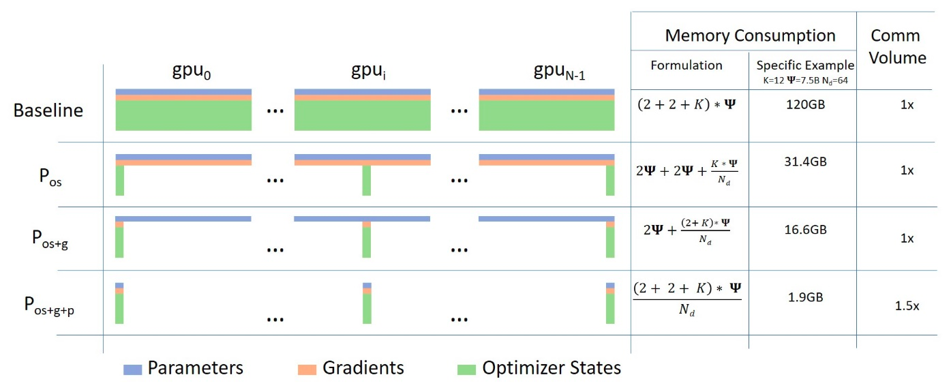
Zero Stages Hugging Face Illustration#
Stage 1: Optimizer State Partitioning#
What it does:
Reduces memory footprint by not replicating optimizer states on every GPU.
Each GPU only keeps its own partition of the optimizer state tensors.
Model parameters and gradients are still fully replicated across devices.
On single GPU, there’s no sharding — so optimizer state partitioning won’t reduce memory use.
How to Enable ZeRO Stage 1#
To activate ZeRO Stage 1 optimization, update the DeepSpeed config by setting:
"zero_optimization": {
   "stage": 1
}
No Python code changes are needed.
Optimizer State Offloading (Stage 1 with Offload)#
In case your model is still hitting memory limits or you’d like to further reduce GPU memory pressure, you can offload the optimizer state to CPU.
This is particularly useful for:
Single GPU setups with tight memory
Larger batch sizes or long sequence lengths
To enable Optimizer State Offloading, modify your configuration to include:
  "zero_optimization": {
"stage": 1,
"offload_optimizer": {
"device": "cpu"
}
}
Stage 2: + Gradient Partitioning#
What it adds:
Reduces activation memory and gradient memory on each GPU.
Makes training larger models possible on limited memory.
Configure your DeepSpeed setup with the following parameters, to activate it:
"zero_optimization": {
    "stage": 2
}
Stage 2 + Offloading provides best memory savings by:#
Offloading optimizer states,
Offloading gradient states,
Apply this setting to the DeepSpeed configuration file:
"zero_optimization": {
   "stage": 2,
   "offload_optimizer": {
      "device": "cpu"
   }
}
Zero 3 Full Parameter Sharding (No Offloading)#
ZeRO Stage 3 is the most memory-efficient stage of DeepSpeed’s ZeRO (Zero Redundancy Optimizer) family. It builds on Stages 1 and 2 by additionally sharding the model parameters themselves, not just optimizer states or gradients.
This stage allows training very large models by distributing:
Optimizer states (as in Stage 1)
Gradients (as in Stage 2)
Model parameters (new in Stage 3)
Use the configuration snippet below in your DeepSpeed setup.
"zero_optimization": {
   "stage": 3
}
ZeRO Stage 3: Full Parameter Offloading#
ZeRO Stage 3 (Parameter + Gradient + Optimizer Sharding) is the most memory-efficient optimization level in DeepSpeed’s ZeRO suite. It goes beyond Stage 2 by partitioning model parameters themselves across GPUs, not just the optimizer and gradient states.
What It Does
Partitions:
Optimizer states (like Stage 1)
Gradients (like Stage 2)
Model parameters (new in Stage 3)
Reduces peak memory usage drastically during training
Enables very large models to be trained on fewer GPUs.
Enable this feature in your DeepSpeed config by including:
"zero_optimization": {
   "stage": 3,
   "offload_optimizer": {
      "device": "cpu"
   },
   "offload_param": {
   "device": "cpu"
   }
}
Offloading: Parameters: pin_memory: true#
In the context of DeepSpeed offloading, setting pin_memory: true enables:
Page-locked (pinned) memory allocation on the host (CPU).
Faster transfers between CPU and GPU because pinned memory allows asynchronous DMA (direct memory access), which allows devices like GPUs to read/write memory directly, without CPU intervention. This means:
The GPU can pull/push offloaded tensors from/to CPU faster.
The CPU is not stalled waiting for transfers to complete.
Data can be transferred while computation is still happening — overlapping compute and memory I/O.
Improved data pipeline throughput, especially noticeable in single-GPU training where the offloaded optimizer is frequently accessed.
For Optimizer Offloading:
"offload_optimizer": {
   "device": "cpu",
   "pin_memory": true
}
For Parameter Offloading:
"offload_param": {
   "device": "cpu",
   "pin_memory": true
}
Tracking CPU Memory Usage#
When using DeepSpeed with ZeRO stages — especially with CPU offloading — it’s important to monitor not only GPU memory, but also CPU memory, since model states or optimizer states can be moved to CPU RAM.
This section demonstrates how to extend a SLURM job script to track both GPU and CPU memory usage using nvidia-smi and psrecord:
Background the Training job:
# Launch the training script with DeepSpeed in the background
python scripts/train.py --deepspeed <ds_config>.json &
# Capture the PID of the DeepSpeed training process for later monitoring or cleanup
TRAIN_PID=$!
The training command is launched in the background (
&) so the script can capture its PID ($!).This is necessary for psrecord to attach to and monitor the correct process.
Add CPU Memory Monitoring with ``psrecord``:
# Start CPU memory logging in the background for the DeepSpeed process (including its children),
# sampling every 5 seconds and writing to the specified log file
psrecord $TRAIN_PID --include-children --interval 5 --log "deepspeed-cpu-offloading-data-finetune${SLURM_JOB_ID}.txt" &

# Capture the PID of the psrecord process so it can be terminated after training finishes
MONITOR_CPU_PID=$!
psrecordtracks memory usage of the training process.--include-childrenensures subprocesses like optimizer workers or data loaders are included.--interval5 matches the GPU log sampling rate.--log writesmemory usage to a timestamped text file.
Wait for the Training to Finish
# Wait for the DeepSpeed training process to complete before stopping any logging or cleanup
wait $TRAIN_PID
Ensures the script pauses until training completes.
Prevents premature termination of memory logging processes.
Stop Logging Process
# Stop the CPU memory logging process now that training has finished
kill $MONITOR_CPU_PID
Cleans up both GPU and CPU memory logging processes after training ends.
DeepSpeed-Zero on Single Node Multi GPUs#
This section describes how to adapt a single-GPU DeepSpeed setup to fine-tune a large model across multiple GPUs on one node.
Tip
Follow the Dist-DL-training/DeepSpeed repository in DeepSpeed-Zero on Single Node Multi GPUs for detailed info.
Setting-up Multi GPUs Training#
To recreate this multi-GPU fine-tuning setup for BLOOM-560M using DeepSpeed, you’ll begin with your working single-GPU Hugging Face + DeepSpeed setup and make a few targeted changes. Below is a full explanation of the required modifications and an overview of how DeepSpeed handles GPU sharding.
Adjust SLURM directives for 2 GPUS per node for example:
#SBATCH --gpus=2                   # Request 2 GPU
#SBATCH --gpus-per-node=2          # 2 GPUs per node
Set up DeepSpeed master address and port: Place these lines before the training command in the SLURM script :
export MASTER_ADDR=$(scontrol show hostnames $SLURM_JOB_NODELIST | head -n 1)  # Hostname or IP of the master node for NCCL initialization
export MASTER_PORT=$(python -c 'import socket; s=socket.socket(); s.bind(("", 0)); print(s.getsockname()[1]); s.close()')    # Dynamically find a free TCP port on the current node to use as the rendezvous port.
export WORLD_SIZE=$SLURM_GPUS_ON_NODE                                        # Total number of GPUs being used on this node
export RANK=0                                                                 # Global rank of this process (0 for single-node jobs)
export LOCAL_RANK=0                                                           # Local GPU index for this process (0–N-1)
These environment variables configure distributed training manually.
MASTER_ADDR: IP or hostname of main node (for NCCL initialization).
MASTER_PORT: The Python one-liner creates a socket, binds it to port 0 (let OS choose an available port).
WORLD_SIZE: Total number of GPUs (set automatically by SLURM).
RANK and LOCAL_RANK: Needed for some custom multi-node setups.
Use the Python Launcher with
python -m torch.distributed.run --nproc_per_node=$SLURM_GPUS_ON_NODE  \
scripts/train.py --deepspeed ds_configs/zero2_cpu_offload_pinned_memory.json &
This command launches distributed training on all GPUs in the current node, using PyTorch’s recommended launcher (torch.distributed.run).
Tip
Follow the following exercise for Benchmarking Multi-GPU DataParallel Training, collect the results and fill the tables.
Multi-Node Training with DeepSpeed and torch.distributed#
When training large models across multiple nodes, we use PyTorch’s torch.distributed.run to launch one training process per node.
This launcher communicates across nodes using TCP-based rendezvous, making it suitable for clusters where direct process launching across nodes (e.g., via SSH) is restricted or avoided.
Tip
Follow the Dist-DL-training/DeepSpeed repository in Multi-Node Training with DeepSpeed and torch.distributed for detailed info.
Setting-up Training#
Below is a side-by-side of the relevant sections, with added/modified lines annotated
1. SLURM Script Edits#
- SBATCH directive:
#SBATCH --nodes=2                                                # Number of nodes to allocate
#SBATCH --ntasks=2                                               # Number of tasks
#SBATCH --ntasks-per-node=1                                      # One task (process) per node
#SBATCH --cpus-per-task=4                                        # Number of CPU cores per task
#SBATCH --gpus=1                                                 # Request 1 GPU
#SBATCH --gpus-per-node=1                                        # 1 GPU per node
- After environment setup lines, determine master node discovery and rendezvous configuration
# Getting the node names
nodes=$(scontrol show hostnames "$SLURM_JOB_NODELIST")
nodes_array=($nodes)
echo “Node IDs of participating nodes ${nodes_array[\*]}”

# Get the IP address and set port for MASTER node
head_node=“${nodes_array[0]}”
echo "Getting the IP address of the head node ${head_node}"
master_ip=$(srun -n 1 -N 1 --gpus=1 -w ${head_node} /bin/hostname -I | cut -d " " -f 2)
master_port=$(python -c 'import socket; s=socket.socket(); s.bind(("", 0)); print(s.getsockname()[1]); s.close()')
echo "head node is ${master_ip}:${master_port}"
For multi-node training without passwordless SSH, each process needs to know exactly where and how to connect. This snippet discovers the head node’s network address and a free port dynamically, so that all workers—spawned via torch.distributed.run—can rendezvous correctly.
Tip
For more details about variables defined, please refer to step-by-step-breakdown , section in the repo
2. Multi-Node Train Script Edits#
- At the top of train_multi_node.py , ensure this modules are imported:
import os
import torch
import torch.distributed as dist
- Log the TCP rendezvous parameters, immediately after the imports:
# =================================================
# Distributed Initialization Logging (TCP-based)
# =================================================
print(f"Initializing process group for rank {os.environ.get('RANK')}")
print(f"MASTER_ADDR: {os.environ.get('MASTER_ADDR')}")
print(f"MASTER_PORT: {os.environ.get('MASTER_PORT')}")
This will print each worker’s rank, and the MASTER_ADDR:MASTER_PORT it connects to.
- Assign the CUDA device, right after logging (and before any NCCL calls), bind the process to its local GPU:
# =============================
# Device Assignment
# =============================
local_rank = int(os.environ.get("LOCAL_RANK", 0))
torch.cuda.set_device(local_rank)
LOCAL_RANKis provided by SLURM ortorch.distributed.run.set_device(local_rank)ensures each process uses its correct GPU.
- Verify Initialization Finally, immediately after the init_process_group call:
# ======================================
# Verify Process Group Initialization
# ======================================
if dist.is_initialized():
   print(f"torch.distributed initialized: "
         f"rank {dist.get_rank()} / world size {dist.get_world_size()}")
Tip
Follow the following exercise for Multi-Node Scaling, collect the results and fill the tables.
Workshop Reference and Next Steps#
This repository Kaust-rccl/Dist-DL-training/DeepSpeed is organized into modular directories for code, configuration, and experiments.
Objective#
This exercise explores large language model (LLM) fine-tuning using DeepSpeed, a deep learning optimization library for large-scale training.
The workshop walks through a practical progression:
Baseline fine-tuning using Hugging Face Trainer without DeepSpeed.
Fine-tuning on a single GPU using DeepSpeed with different ZeRO optimization stages.
Comparing ZeRO stages with and without CPU offloading.
Evaluating memory usage and performance trade-offs across configurations.
Scaling up to multi-GPU and multi-node training using DeepSpeed’s distributed launcher.
In this workshop, you’ll:
Use transformers to load a pre-trained BLOOM model.
Use datasets to load and preprocess a SQuAD subset.
Fine-tune the model on a question-answering task using the Trainer API.
Later, enhance scalability using DeepSpeed for memory and compute-efficient training.
Learning objective#
By the end of this exercise, participants will be able to:
Understand the basics of fine-tuning transformer models using Hugging Face and DeepSpeed.
Configure DeepSpeed for ZeRO Stage 1, 2, and 3, with and without offloading.
Measure and interpret training performance, memory footprint, and scalability across setups.
Launch distributed training jobs on multiple GPUs and across multiple nodes.
Benchmarking Exercises#
This section walks through how to benchmarking using ZeRO stages:
- Exercise: Benchmarking ZeRO Stages with and without Offloading
Part 1: Compare Stage 2 With and Without pin_memory: true
Part 2: Fill the ZeRO Stage Comparison Table
- Exercise: Benchmarking Multi-GPU DataParallel Training
Part 1: Scaling on Multi-GPU Setup.
Part 2: 2-GPU ZeRO Stage Comparison